Showing posts with label Blogging. Show all posts

Google Talk Widget For Blogger / BlogSpot

Wednesday, 8 August 2012
google-talk-widget Google Talk is one of the most popular IM clients on  the Web. The Google Talk Widget for Blogger will help you in adding an elegant Google Talk badge to your Blogger / BlogSpot Blog.
The Google Talk Widget comes in 2 varieties. You can add any of these two widgets.Both of them are different and work differently :)

1.Google Chat Back Gadget – This gadget allows your visitors to IM you without revealing your Gmail address.you can chat with your blog visitors like what you normally do with your IM buddies. The only difference here is that your identity wont be revealed.

How to Install the Google Chat Back Gadget?

1. Login with your Google Account at Google Talk Badges
2.Copy the HTML Code generated by Google
3.Now login to your Blogger Account and Navigate to Layout > Page Elements Page
4.Click the Add Gadget Link and Opt to add an HTML/JavaScript Gadget
5.Paste the HTML code(that we copied) into the Gadget and Save it.
6.Now you should see the Google Chat Back Widget on your Blog’s sidebar.
Here is a Screenshot of what the Google Chat Back Widget will look like
image
2. Google Talk Gadget – This Gadget is just like the Google Talk Interface within your Gmail. This will allow your  blog visitors to login to Google Talk. It is better to say that, once you add this gadget, your blog can serve as a Google Talk IM Client. This Widget wont allow the visitors to chat with you. If the visitor logs into his Google Talk account(via this Google Talk Gadget), he will be able to chat with his Google Talk Buddies and not with you(the blog owner)unless you were already on his buddy list :)
You can add this Widget easily using this One Click Installer. It will Add the Widget to your Blog’s Sidebar.
Add Recent Posts Widget
Permalink : Google Talk Widget for Blogger
Read more ...

Google Talk Widget For Blogger / BlogSpot

Wednesday, 8 August 2012
google-talk-widget Google Talk is one of the most popular IM clients on  the Web. The Google Talk Widget for Blogger will help you in adding an elegant Google Talk badge to your Blogger / BlogSpot Blog.
The Google Talk Widget comes in 2 varieties. You can add any of these two widgets.Both of them are different and work differently :)

1.Google Chat Back Gadget – This gadget allows your visitors to IM you without revealing your Gmail address.you can chat with your blog visitors like what you normally do with your IM buddies. The only difference here is that your identity wont be revealed.

How to Install the Google Chat Back Gadget?

1. Login with your Google Account at Google Talk Badges
2.Copy the HTML Code generated by Google
3.Now login to your Blogger Account and Navigate to Layout > Page Elements Page
4.Click the Add Gadget Link and Opt to add an HTML/JavaScript Gadget
5.Paste the HTML code(that we copied) into the Gadget and Save it.
6.Now you should see the Google Chat Back Widget on your Blog’s sidebar.
Here is a Screenshot of what the Google Chat Back Widget will look like
image
2. Google Talk Gadget – This Gadget is just like the Google Talk Interface within your Gmail. This will allow your  blog visitors to login to Google Talk. It is better to say that, once you add this gadget, your blog can serve as a Google Talk IM Client. This Widget wont allow the visitors to chat with you. If the visitor logs into his Google Talk account(via this Google Talk Gadget), he will be able to chat with his Google Talk Buddies and not with you(the blog owner)unless you were already on his buddy list :)
You can add this Widget easily using this One Click Installer. It will Add the Widget to your Blog’s Sidebar.
Add Recent Posts Widget
Permalink : Google Talk Widget for Blogger
Read more ...

Related Posts Widget for Blogger with Thumbnails

Wednesday, 8 August 2012

Related Posts with Thumbnails for Blogger

related posts with thumbnails for blogger
Displaying the links to related posts along with a thumbnail of the corresponding post will help you increase the page views/user .Users will be tempted to go for the related posts when they are presented attractively with thumbnails.

This is another first release from me.This one also uses the media thumbnails generated by blogger for each post.
For displaying the thumbnails,this widget will use the images uploaded for the post using the blogger image uploader(from the post editor) [Update - Now supports external images also.]

Related Posts Widget with Thumbnails for Blogger

Here are the detailed steps to install the related posts widget for blogger with thumbnails
1.First of all Login to your blogger dashboard and navigate to Layout > Edit HTML and check the "Expand Widget Templates" check box
2.Now look for
</head>
and replace it with
<!--Related Posts with thumbnails Scripts and Styles Start-->
<!-- remove --><b:if cond='data:blog.pageType == &quot;item&quot;'>
<style type="text/css">
#related-posts {
float:center;
text-transform:none;
height:100%;
min-height:100%;
padding-top:5px;
padding-left:5px;
}

#related-posts h2{
font-size: 1.6em;
font-weight: bold;
color: black;
font-family: Georgia, &#8220;Times New Roman&#8221;, Times, serif;
margin-bottom: 0.75em;
margin-top: 0em;
padding-top: 0em;
}
#related-posts a{
color:black;
}
#related-posts a:hover{
color:black;
}

#related-posts a:hover {
background-color:#d4eaf2;
}
</style>
<script type='text/javascript'>
var defaultnoimage="https://blogger.googleusercontent.com/img/b/R29vZ2xl/AVvXsEj9kCRrNGdSA010IKBqoP-9-CsFnjbIppUDDKtvhzwVuuEhhTkFxWq9FzeKicRlAXV51803ig0MGmTHNe2AlUCRctiswnFibaGJ1B0Lmrml04S5DgdB9CAO9CmQc4dE8CcKrHBeyqoRid0/s400/noimage.png";
var maxresults=5;
var splittercolor="#d4eaf2";
var relatedpoststitle="Related Posts";
</script>

<script src='http://bloggergadgets.googlecode.com/files/related_posts_with_thumbnails_min.js' type='text/javascript'/>
<!-- remove --></b:if>
<!--Related Posts with thumbnails Scripts and Styles End-->
</head>
3.Now Find
<div class='post-footer-line post-footer-line-1'>
If you cant find it then try finding this one
<p class='post-footer-line post-footer-line-1'>
Now immediately after any of these lines(whichever you could find) place this code snippet
<!-- Related Posts with Thumbnails Code Start-->
<!-- remove --><b:if cond='data:blog.pageType == &quot;item&quot;'>
<div id='related-posts'>
<b:loop values='data:post.labels' var='label'>
<b:if cond='data:label.isLast != &quot;true&quot;'>
</b:if>
<script expr:src='&quot;/feeds/posts/default/-/&quot; + data:label.name + &quot;?alt=json-in-script&amp;callback=related_results_labels_thumbs&amp;max-results=6&quot;' type='text/javascript'/></b:loop>
<script type='text/javascript'>
removeRelatedDuplicates_thumbs();
printRelatedLabels_thumbs(&quot;<data:post.url/>&quot;);
</script>
</div><div style='clear:both'/>
<!-- remove --></b:if>
<b:if cond='data:blog.url == data:blog.homepageUrl'><b:if cond='data:post.isFirstPost'>
<a href='http://www.bloggerplugins.org/2009/08/related-posts-thumbnails-blogger-widget.html'><img style="border: 0" alt="Related Posts Widget For Blogger with Thumbnails" src="http://image.bloggerplugins.org/blogger-widgets.png" /></a><a href='http://bloggertemplates.bloggerplugins.org/' ><img style="border: 0" alt="Blogger Templates" src="http://image.bloggerplugins.org/blogger-templates.png" /></a>
</b:if></b:if>
<!-- Related Posts with Thumbnails Code End-->
4.You can adjust the maximum number of related posts being displayed by editing this line in the code.
var maxresults=5;
you will also have to edit the posts per label(it should ideally be one more that maxresults)
max-results=6
5.To edit the title of the widget you can change this line of code
var relatedpoststitle="Related Posts";
6.To change the default thumbnail, you can edit this line of code
var defaultnoimage="https://blogger.googleusercontent.com/img/b/R29vZ2xl/AVvXsEj9kCRrNGdSA010IKBqoP-9-CsFnjbIppUDDKtvhzwVuuEhhTkFxWq9FzeKicRlAXV51803ig0MGmTHNe2AlUCRctiswnFibaGJ1B0Lmrml04S5DgdB9CAO9CmQc4dE8CcKrHBeyqoRid0/s400/noimage.png";
7.To Change the Colour of the Splitter Line , edit
var splittercolor="#d4eaf2";
To change the other colours and all you will have to modify the CSS
If you fall into troubles implementing this,don't panic.. :) .just leave me a comment here and i will help you out. If you like to give me any suggestions on how to improve this widget,then it would be really great.

How to display the related posts on every page and not only on the post pages?

Just remove the two lines starting with <!-- remove --> from both step 3 and step 2.
that is lines
<!-- remove --><b:if cond='data:blog.pageType == &quot;item&quot;'>
and
<!-- remove --></b:if>
Update 29/03/2012 : If the script is not working for you then please change http://blogergadgets.googlecode.com/files/related-posts-with-thumbnails-for-blogger-pro.js to http://bloggergadgets.googlecode.com/files/related_posts_with_thumbnails_min.js
Sorry for the trouble :-)
Permalink: Related Posts with Thumbnails for Blogger
Read more ...

Related Posts Widget for Blogger with Thumbnails

Wednesday, 8 August 2012

Related Posts with Thumbnails for Blogger

related posts with thumbnails for blogger
Displaying the links to related posts along with a thumbnail of the corresponding post will help you increase the page views/user .Users will be tempted to go for the related posts when they are presented attractively with thumbnails.

This is another first release from me.This one also uses the media thumbnails generated by blogger for each post.
For displaying the thumbnails,this widget will use the images uploaded for the post using the blogger image uploader(from the post editor) [Update - Now supports external images also.]

Related Posts Widget with Thumbnails for Blogger

Here are the detailed steps to install the related posts widget for blogger with thumbnails
1.First of all Login to your blogger dashboard and navigate to Layout > Edit HTML and check the "Expand Widget Templates" check box
2.Now look for
</head>
and replace it with
<!--Related Posts with thumbnails Scripts and Styles Start-->
<!-- remove --><b:if cond='data:blog.pageType == &quot;item&quot;'>
<style type="text/css">
#related-posts {
float:center;
text-transform:none;
height:100%;
min-height:100%;
padding-top:5px;
padding-left:5px;
}

#related-posts h2{
font-size: 1.6em;
font-weight: bold;
color: black;
font-family: Georgia, &#8220;Times New Roman&#8221;, Times, serif;
margin-bottom: 0.75em;
margin-top: 0em;
padding-top: 0em;
}
#related-posts a{
color:black;
}
#related-posts a:hover{
color:black;
}

#related-posts a:hover {
background-color:#d4eaf2;
}
</style>
<script type='text/javascript'>
var defaultnoimage="https://blogger.googleusercontent.com/img/b/R29vZ2xl/AVvXsEj9kCRrNGdSA010IKBqoP-9-CsFnjbIppUDDKtvhzwVuuEhhTkFxWq9FzeKicRlAXV51803ig0MGmTHNe2AlUCRctiswnFibaGJ1B0Lmrml04S5DgdB9CAO9CmQc4dE8CcKrHBeyqoRid0/s400/noimage.png";
var maxresults=5;
var splittercolor="#d4eaf2";
var relatedpoststitle="Related Posts";
</script>

<script src='http://bloggergadgets.googlecode.com/files/related_posts_with_thumbnails_min.js' type='text/javascript'/>
<!-- remove --></b:if>
<!--Related Posts with thumbnails Scripts and Styles End-->
</head>
3.Now Find
<div class='post-footer-line post-footer-line-1'>
If you cant find it then try finding this one
<p class='post-footer-line post-footer-line-1'>
Now immediately after any of these lines(whichever you could find) place this code snippet
<!-- Related Posts with Thumbnails Code Start-->
<!-- remove --><b:if cond='data:blog.pageType == &quot;item&quot;'>
<div id='related-posts'>
<b:loop values='data:post.labels' var='label'>
<b:if cond='data:label.isLast != &quot;true&quot;'>
</b:if>
<script expr:src='&quot;/feeds/posts/default/-/&quot; + data:label.name + &quot;?alt=json-in-script&amp;callback=related_results_labels_thumbs&amp;max-results=6&quot;' type='text/javascript'/></b:loop>
<script type='text/javascript'>
removeRelatedDuplicates_thumbs();
printRelatedLabels_thumbs(&quot;<data:post.url/>&quot;);
</script>
</div><div style='clear:both'/>
<!-- remove --></b:if>
<b:if cond='data:blog.url == data:blog.homepageUrl'><b:if cond='data:post.isFirstPost'>
<a href='http://www.bloggerplugins.org/2009/08/related-posts-thumbnails-blogger-widget.html'><img style="border: 0" alt="Related Posts Widget For Blogger with Thumbnails" src="http://image.bloggerplugins.org/blogger-widgets.png" /></a><a href='http://bloggertemplates.bloggerplugins.org/' ><img style="border: 0" alt="Blogger Templates" src="http://image.bloggerplugins.org/blogger-templates.png" /></a>
</b:if></b:if>
<!-- Related Posts with Thumbnails Code End-->
4.You can adjust the maximum number of related posts being displayed by editing this line in the code.
var maxresults=5;
you will also have to edit the posts per label(it should ideally be one more that maxresults)
max-results=6
5.To edit the title of the widget you can change this line of code
var relatedpoststitle="Related Posts";
6.To change the default thumbnail, you can edit this line of code
var defaultnoimage="https://blogger.googleusercontent.com/img/b/R29vZ2xl/AVvXsEj9kCRrNGdSA010IKBqoP-9-CsFnjbIppUDDKtvhzwVuuEhhTkFxWq9FzeKicRlAXV51803ig0MGmTHNe2AlUCRctiswnFibaGJ1B0Lmrml04S5DgdB9CAO9CmQc4dE8CcKrHBeyqoRid0/s400/noimage.png";
7.To Change the Colour of the Splitter Line , edit
var splittercolor="#d4eaf2";
To change the other colours and all you will have to modify the CSS
If you fall into troubles implementing this,don't panic.. :) .just leave me a comment here and i will help you out. If you like to give me any suggestions on how to improve this widget,then it would be really great.

How to display the related posts on every page and not only on the post pages?

Just remove the two lines starting with <!-- remove --> from both step 3 and step 2.
that is lines
<!-- remove --><b:if cond='data:blog.pageType == &quot;item&quot;'>
and
<!-- remove --></b:if>
Update 29/03/2012 : If the script is not working for you then please change http://blogergadgets.googlecode.com/files/related-posts-with-thumbnails-for-blogger-pro.js to http://bloggergadgets.googlecode.com/files/related_posts_with_thumbnails_min.js
Sorry for the trouble :-)
Permalink: Related Posts with Thumbnails for Blogger
Read more ...

New UI on Your Blogger Dashboard

Wednesday, 8 August 2012
New UI on Your DashboardThe Blogger’s new UI has now migrated from Blogger Daft to the regular Dashboard.If you are a regular reader here, then you must have already seen screenshot of the new UI. Blogger has now made some improvements to  the new UI, and has plugged it into the regular dashboard.The new UI also includes an option to Edit your Template Code.

When you login to your Blogger Dashboard, you should see a notification asking you to check out the New UI.
image

If you dismissed this notification, don’t worry, you can still switch to the new UI.In your Old Dashboard, you will see a link asking you to try the new UI.
image
If you are not able to figure that out, just follow this link and you will be taken to the new UI.
Here are a few Screen Shots: (Click the image for a larger version)
Blogger Dashboard
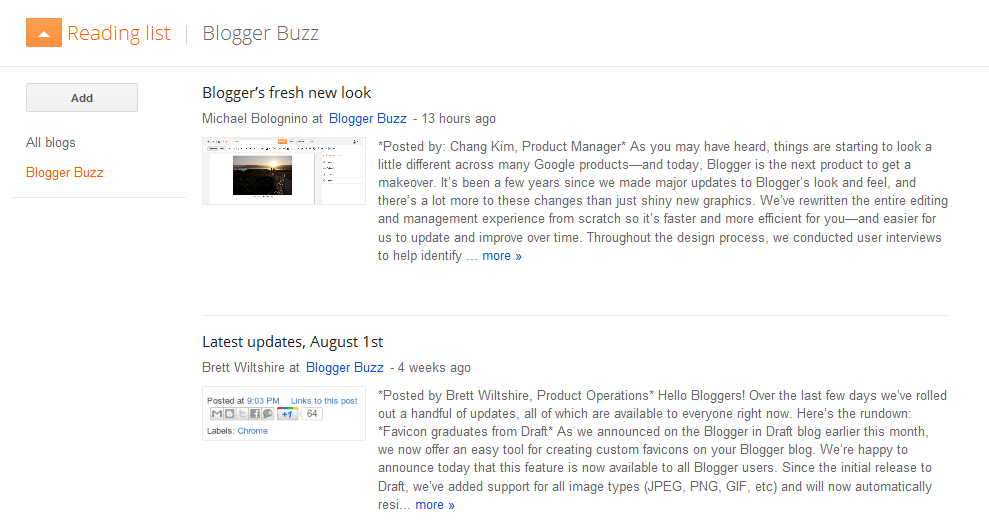
Blogger Reading List
Blog Overview
Blog Posts
Blog Pages
Blog Comments
Blog Stats
Blog Earnings
Blog Layout
Blog Template
Edit Template HTML
Blog Settings
If you don’t like the new Interface, you can switch back to the old one.
image
Read more ...

New UI on Your Blogger Dashboard

Wednesday, 8 August 2012
New UI on Your DashboardThe Blogger’s new UI has now migrated from Blogger Daft to the regular Dashboard.If you are a regular reader here, then you must have already seen screenshot of the new UI. Blogger has now made some improvements to  the new UI, and has plugged it into the regular dashboard.The new UI also includes an option to Edit your Template Code.

When you login to your Blogger Dashboard, you should see a notification asking you to check out the New UI.
image

If you dismissed this notification, don’t worry, you can still switch to the new UI.In your Old Dashboard, you will see a link asking you to try the new UI.
image
If you are not able to figure that out, just follow this link and you will be taken to the new UI.
Here are a few Screen Shots: (Click the image for a larger version)
Blogger Dashboard
Blogger Reading List
Blog Overview
Blog Posts
Blog Pages
Blog Comments
Blog Stats
Blog Earnings
Blog Layout
Blog Template
Edit Template HTML
Blog Settings
If you don’t like the new Interface, you can switch back to the old one.
image
Read more ...

How To Change The Payee Name of Google Adsense Account

Tuesday, 7 August 2012
Ever Wonder that could you change the Payee name of your Google Adsense Account then you can surely do so.  According to The Terms and conditions of Google Adsense you can easily change the payee name to which payment is made.

However in some countries  like China, Brazil, Indonesia, Vietnam, Malaysia, Philippines, Singapore,India and Thailand you can not change the payee name of adsense account.

Step 1:- 

If You are not located in any of the above countries then log in to your account.

Step 2:- 

Click My Account tab on the main page of your Google Adsense Area.

Step 3:- 

Your Profile Page will appear and above your name and address you will see the option of Edit Payee Name. Step 4:-

Click The Button and write your Genuine Name in the page that appears. Check what name you have written and Hit the option Edit Payee Name.  Please Note that Google asks you to agree to a number of terms and conditions on the change of Payee name stating that Google Accounts can not be sold to any one and you have to re enter your tax information.


Read more ...

How To Change The Payee Name of Google Adsense Account

Tuesday, 7 August 2012
Ever Wonder that could you change the Payee name of your Google Adsense Account then you can surely do so.  According to The Terms and conditions of Google Adsense you can easily change the payee name to which payment is made.

However in some countries  like China, Brazil, Indonesia, Vietnam, Malaysia, Philippines, Singapore,India and Thailand you can not change the payee name of adsense account.

Step 1:- 

If You are not located in any of the above countries then log in to your account.

Step 2:- 

Click My Account tab on the main page of your Google Adsense Area.

Step 3:- 

Your Profile Page will appear and above your name and address you will see the option of Edit Payee Name. Step 4:-

Click The Button and write your Genuine Name in the page that appears. Check what name you have written and Hit the option Edit Payee Name.  Please Note that Google asks you to agree to a number of terms and conditions on the change of Payee name stating that Google Accounts can not be sold to any one and you have to re enter your tax information.


Read more ...

The Benefits of Hello Bar - Add this to Blogger

Tuesday, 7 August 2012

RaiShahnawaz Again With Great Post. There are so many sticky bars that are all over the internet far also RaiShahnawaz have some amazing sticky bars widgets now and I see many people welcomed it at my others blog so I came today with another good site that provide a service to create an easy customized sticky bar with a lot of advantages and this bar is also used on most of the popular blog . You can see statistics for it and even add your twitter and RSS FEEDS. So now before we continue you may like to see live demo.


What is the benefit of this bar Shown Above:

Before I show some of the benefits I will show some of the widgets that is created by RaiShahnawaz.Com :

1- Installation is so easy

2- You can updates your sticky bar directly from hello bar dashboard.

3- You can easily customize it .

4- The best thing that it can be return again after you close it.

5- There are so many styles that you can add to it like gradient and many other things that you will like.

6- You can view demo of it  on your site before you register on hello bar.

7- you will get many of the clicks to the link you view in it.

There are also a many others dynamic feathers that I did not mention and some that is available for you after upgrade that I really suggest you to do, you have to upgrade your account but after you use it and like it and see how much is it and how can you benefit from it a lot.

How To Install It???


you can simply go to the site by clicking here Hello Bar
you can view yours site on it by clicking on "Try It Out".
Click on free sign up.
Enter your email adress.
Go to your inbox and use the information they gave to you to login
Change your password after you login so that you can remember it after.
you will be able to customize your first bar directly which will be named as my hello bar.
Click on settings.
Change it as you want.
click on save's.
copy the code
paste it just before..

</head>
And now Congratulations you have Sucessfully created your hello bar.

Thats it!


Read more ...

The Benefits of Hello Bar - Add this to Blogger

Tuesday, 7 August 2012

RaiShahnawaz Again With Great Post. There are so many sticky bars that are all over the internet far also RaiShahnawaz have some amazing sticky bars widgets now and I see many people welcomed it at my others blog so I came today with another good site that provide a service to create an easy customized sticky bar with a lot of advantages and this bar is also used on most of the popular blog . You can see statistics for it and even add your twitter and RSS FEEDS. So now before we continue you may like to see live demo.


What is the benefit of this bar Shown Above:

Before I show some of the benefits I will show some of the widgets that is created by RaiShahnawaz.Com :

1- Installation is so easy

2- You can updates your sticky bar directly from hello bar dashboard.

3- You can easily customize it .

4- The best thing that it can be return again after you close it.

5- There are so many styles that you can add to it like gradient and many other things that you will like.

6- You can view demo of it  on your site before you register on hello bar.

7- you will get many of the clicks to the link you view in it.

There are also a many others dynamic feathers that I did not mention and some that is available for you after upgrade that I really suggest you to do, you have to upgrade your account but after you use it and like it and see how much is it and how can you benefit from it a lot.

How To Install It???


you can simply go to the site by clicking here Hello Bar
you can view yours site on it by clicking on "Try It Out".
Click on free sign up.
Enter your email adress.
Go to your inbox and use the information they gave to you to login
Change your password after you login so that you can remember it after.
you will be able to customize your first bar directly which will be named as my hello bar.
Click on settings.
Change it as you want.
click on save's.
copy the code
paste it just before..

</head>
And now Congratulations you have Sucessfully created your hello bar.

Thats it!


Read more ...

Track Visitors on WordPress Blog using WP Plugins?

Tuesday, 7 August 2012


After a long time i am going to be a write a old post.The Bloggers Want to Track the real visitors of his websites. so today the post is something about that. Read The following article analyzes how to track visitors on the WordPress blog using WP plugins.


Google Analytics Plugin :
It is an easy way to install WordPress plugin, this enables you to keep a track of visitors to your website. The details you can acquire from this great tracking tool is the main instances of outbound clicks and the page viewed. The tool allows you to take advantage of “asynchronous” code which enjoys the reputation of being the safest and the most reliable Google Analytics tracking code. It even allows you to take the code and keep it in any other location of your choice if that is what you desire. If you were wish, you can even track the information of downloads from your website. However, the feature which sets itself apart from the others of the kind is the facility to ignore any user if you wish to do so. Even if you desire to integrate yours website with the Google product of your choice like AdSense, this WP plugin has an option to achieve to the purpose. It is highly recommended that you subscribe to the official Google blog posts with this regard. They are sure to give you great insights into how to track visitors on WordPress using WP plugins.


WassUp :

If you were someone who has a passion for the search engine optimization, WassUp is just for you. It gives you a detailed description on the activities of the visitors to yours website in real time. It tells you the number of users online and what they are doing in your website. It also allows you to monitor attempts of unauthorized access to your websites and the efforts to hack the site. If you wish, you can be even disable tracking. The facility to ban certain IPs and the option to disable the monitoring of the attempts to exploit your website are just a few features available for you to ensure that you are able to optimize this plugin to your likes and dislikes.


StatPress :

Known to be first of this kind, so this plugin allows you to actually spy to the activities of the visitors to your website. And it is ideal for anyone who is concerned about the “blog statistics”. This allows you to the view the web browsers used, the IP address and even the name of the user surfing your website. Your traffic monitoring starts from the moment the plugin gets activated. A dashboard displays all the information being collected. In the instance of yours recorded info exceeds the available space limits, StatPress automatically delete past records to allow the recording of update information about the visitors to your blog. It even offers an option to ban the IPs you wish from surfing your website.


WP SlimStat :
A powerful plugin which allows you to the analyze the behavior of those who surf your website, this plugin offers advanced and user-friendly interface. If your website has reserved a place of its own in FB, this plugin allows you even to track the Facebook and Google Plus clicks with regard to your blog post. WP SlimStat even allows you to ban IPs, users or even domains in accordance to yours requirements and specifications. And to make sure that you get the maximum advantage of all the features and the latest developments in the field, you are required to subscribe to the WordPress blog posts of authors or owners of the plugin. If you wish to install this plugin, you should have SQL server and at least a minimum of the five MB free space in your website.


We Have Updated Our Blog . Hope You like my Post.
Read more ...

Track Visitors on WordPress Blog using WP Plugins?

Tuesday, 7 August 2012


After a long time i am going to be a write a old post.The Bloggers Want to Track the real visitors of his websites. so today the post is something about that. Read The following article analyzes how to track visitors on the WordPress blog using WP plugins.


Google Analytics Plugin :
It is an easy way to install WordPress plugin, this enables you to keep a track of visitors to your website. The details you can acquire from this great tracking tool is the main instances of outbound clicks and the page viewed. The tool allows you to take advantage of “asynchronous” code which enjoys the reputation of being the safest and the most reliable Google Analytics tracking code. It even allows you to take the code and keep it in any other location of your choice if that is what you desire. If you were wish, you can even track the information of downloads from your website. However, the feature which sets itself apart from the others of the kind is the facility to ignore any user if you wish to do so. Even if you desire to integrate yours website with the Google product of your choice like AdSense, this WP plugin has an option to achieve to the purpose. It is highly recommended that you subscribe to the official Google blog posts with this regard. They are sure to give you great insights into how to track visitors on WordPress using WP plugins.


WassUp :

If you were someone who has a passion for the search engine optimization, WassUp is just for you. It gives you a detailed description on the activities of the visitors to yours website in real time. It tells you the number of users online and what they are doing in your website. It also allows you to monitor attempts of unauthorized access to your websites and the efforts to hack the site. If you wish, you can be even disable tracking. The facility to ban certain IPs and the option to disable the monitoring of the attempts to exploit your website are just a few features available for you to ensure that you are able to optimize this plugin to your likes and dislikes.


StatPress :

Known to be first of this kind, so this plugin allows you to actually spy to the activities of the visitors to your website. And it is ideal for anyone who is concerned about the “blog statistics”. This allows you to the view the web browsers used, the IP address and even the name of the user surfing your website. Your traffic monitoring starts from the moment the plugin gets activated. A dashboard displays all the information being collected. In the instance of yours recorded info exceeds the available space limits, StatPress automatically delete past records to allow the recording of update information about the visitors to your blog. It even offers an option to ban the IPs you wish from surfing your website.


WP SlimStat :
A powerful plugin which allows you to the analyze the behavior of those who surf your website, this plugin offers advanced and user-friendly interface. If your website has reserved a place of its own in FB, this plugin allows you even to track the Facebook and Google Plus clicks with regard to your blog post. WP SlimStat even allows you to ban IPs, users or even domains in accordance to yours requirements and specifications. And to make sure that you get the maximum advantage of all the features and the latest developments in the field, you are required to subscribe to the WordPress blog posts of authors or owners of the plugin. If you wish to install this plugin, you should have SQL server and at least a minimum of the five MB free space in your website.


We Have Updated Our Blog . Hope You like my Post.
Read more ...

Add Multi Colored Popular Post Widget In Blogger

Monday, 6 August 2012
We usually show Popular post widget to our readers so that they can enjoy the most popular post of our blog. But this article is not for Normal popular post widget rather how you can add multi colored popular post widget in Blogger. The multi colored popular post widget looks really awesome. It has also three displaying modes: display title only, display title with image thumbnail. I hope you will enjoy the widget.


  • Go To Blogger Dashboard → Design → Edit HTML
  • Now Find the following code using CTRL+F


/* Variable definitions
====================


  • Copy and Paste the Code the code shown below just after it


  • <Group description="PopularPosts Backgrounds" selector="#PopularPosts1">
    <Variable name="PopularPosts.background.color1" description="background color1" type="color" default="#fa4242" value="#ff4c54"/>
    <Variable name="PopularPosts.background.color2" description="background color2" type="color" default="#ee6107" value="#ff764c"/>
    <Variable name="PopularPosts.background.color3" description="background color3" type="color" default="#f0f" value="#ffde4c"/>
    <Variable name="PopularPosts.background.color4" description="background color4" type="color" default="#ff0" value="#c7f25f"/>
    <Variable name="PopularPosts.background.color5" description="background color5" type="color" default="#0ff" value="#33c9f7"/>
    <Variable name="PopularPosts.background.color6" description="background color6" type="color" default="#ff0" value="#7ee3c7"/>
    <Variable name="PopularPosts.background.color7" description="background color7" type="color" default="#ff0" value="#f6993d"/>
    </Group>


  • Now Find the code shown below using [ctrl+F]


  • ]]></b:skin>


  • Now Paste the Code shown below just before or above it


  • #PopularPosts1 ul{margin:0;padding:5px 0;list-style-type:none}
    #PopularPosts1 ul li{position:relative;margin:5px 0;border:0;padding:10px}
    #PopularPosts1 ul li:first-child{background:$(PopularPosts.background.color1);width:90%}
    #PopularPosts1 ul li:first-child:after{content:"1"}
    #PopularPosts1 ul li:first-child + li{background:$(PopularPosts.background.color2);width:85%}
    #PopularPosts1 ul li:first-child + li:after{content:"2"}
    #PopularPosts1 ul li:first-child + li + li{background:$(PopularPosts.background.color3);width:80%}
    #PopularPosts1 ul li:first-child + li + li:after{content:"3"}
    #PopularPosts1 ul li:first-child + li + li + li{background:$(PopularPosts.background.color4);width:75%}
    #PopularPosts1 ul li:first-child + li + li + li:after{content:"4"}
    #PopularPosts1 ul li:first-child + li + li + li + li{background:$(PopularPosts.background.color5);width:70%}
    #PopularPosts1 ul li:first-child + li + li + li + li:after{content:"5"}
    #PopularPosts1 ul li:first-child + li + li + li + li +li{background:$(PopularPosts.background.color6);width:65%}
    #PopularPosts1 ul li:first-child + li + li + li + li + li:after{content:"6"}
    #PopularPosts1 ul li:first-child + li + li + li + li + li +li{background:$(PopularPosts.background.color7);width:60%}
    #PopularPosts1 ul li:first-child + li + li + li + li + li + li:after{content:"7"}
    #PopularPosts1 ul li:first-child:after,
    #PopularPosts1 ul li:first-child + li:after,
    #PopularPosts1 ul li:first-child + li + li:after,
    #PopularPosts1 ul li:first-child + li + li + li:after,
    #PopularPosts1 ul li:first-child + li + li + li + li:after,
    #PopularPosts1 ul li:first-child + li + li + li + li + li:after,
    #PopularPosts1 ul li:first-child + li + li + li + li + li + li:after{position:absolute;top:20px;right:-15px;border-radius:50%;background:#353535;width:30px;height:30px;line-height:1em;text-align:center;font-size:28px;color:#fff}
    #PopularPosts1 ul li .item-thumbnail{float:left;border:0;margin-right:10px;background:transparent;padding:0;width:40px;height:40px}
    #PopularPosts1 ul li a{font-size:12px;color:#444;text-decoration:none}
    #PopularPosts1 ul li a:hover{color:#222;text-decoration:none}


  • Now Find the code shown below using F3


  • <b:section class='sidebar' id='sidebar' preferred='yes'>


  • Now Paste the Code Shown Below just below/after it


  • <b:widget id='PopularPosts1' locked='false' title='Popular Posts' type='PopularPosts'>
    <b:includable id='main'>
    <b:if cond='data:title'>
    <h2><data:title/></h2>
    </b:if>
    <div class='widget-content popular-posts'>
    <ul>
    <b:loop values='data:posts' var='post'>
    <li>
    <b:if cond='data:showThumbnails == &quot;false&quot;'>
    <b:if cond='data:showSnippets == &quot;false&quot;'>
    <a expr:href='data:post.href' expr:title='data:post.title' rel='bookmark'><data:post.title/></a>
    <b:else/>
    <a expr:href='data:post.href' expr:title='data:post.snippet' rel='bookmark'><data:post.title/></a>
    </b:if>
    <b:else/>
    <b:if cond='data:showSnippets == &quot;false&quot;'>
    <b:if cond='data:post.thumbnail'>
    <img class='item-thumbnail' expr:alt='data:post.title' expr:src='data:post.thumbnail'/>
    <b:else/>
    <img alt='no image' class='item-thumbnail' src='https://blogger.googleusercontent.com/img/b/R29vZ2xl/AVvXsEi6wGxuZEUhuvouGXUMAX7eHBjx9OaP4rJDcblpenR4JC64c7GCcEl1mvzHeKVSj5OuBwyPhP1NIAPvtN7CAi0HZuSk_FqGDDA9gcgXcP2Yx-cqSPSnSrCmVzwmA_rjzgz9CVW6rqdCyow/s1600/defaultimage.jpg'/>
    </b:if>
    <a expr:href='data:post.href' expr:title='data:post.title' rel='bookmark'><data:post.title/></a>
    <div class='clear'/>
    <b:else/>
    <b:if cond='data:post.thumbnail'>
    <img class='item-thumbnail' expr:alt='data:post.title' expr:src='data:post.thumbnail'/>
    <b:else/>
    <img alt='no image' class='item-thumbnail' src='https://blogger.googleusercontent.com/img/b/R29vZ2xl/AVvXsEi6wGxuZEUhuvouGXUMAX7eHBjx9OaP4rJDcblpenR4JC64c7GCcEl1mvzHeKVSj5OuBwyPhP1NIAPvtN7CAi0HZuSk_FqGDDA9gcgXcP2Yx-cqSPSnSrCmVzwmA_rjzgz9CVW6rqdCyow/s1600/defaultimage.jpg'/>
    </b:if>
    <a expr:href='data:post.href' expr:title='data:post.snippet' rel='bookmark'><data:post.title/></a>
    <div class='clear'/>
    </b:if>
    </b:if>
    </li>
    </b:loop>
    </ul>
    </div>
    </b:includable>
    </b:widget>


    Now save the template and done.

    Settings


    • Now got o Page Element You will find out a popular widget
    • Click on the edit link of Popular Posts widget
    • Select “Display Up To 7 Posts”
    • Now Save the widget


    Change Color


    Go To Design → Template Designer → Advanced → PopularPostsBackground


    Please comment here if you face any problem. Take only 10 seconds to share the article if you like.

    Read more ...

    Add Multi Colored Popular Post Widget In Blogger

    Monday, 6 August 2012
    We usually show Popular post widget to our readers so that they can enjoy the most popular post of our blog. But this article is not for Normal popular post widget rather how you can add multi colored popular post widget in Blogger. The multi colored popular post widget looks really awesome. It has also three displaying modes: display title only, display title with image thumbnail. I hope you will enjoy the widget.


    • Go To Blogger Dashboard → Design → Edit HTML
    • Now Find the following code using CTRL+F


    /* Variable definitions
    ====================


  • Copy and Paste the Code the code shown below just after it


  • <Group description="PopularPosts Backgrounds" selector="#PopularPosts1">
    <Variable name="PopularPosts.background.color1" description="background color1" type="color" default="#fa4242" value="#ff4c54"/>
    <Variable name="PopularPosts.background.color2" description="background color2" type="color" default="#ee6107" value="#ff764c"/>
    <Variable name="PopularPosts.background.color3" description="background color3" type="color" default="#f0f" value="#ffde4c"/>
    <Variable name="PopularPosts.background.color4" description="background color4" type="color" default="#ff0" value="#c7f25f"/>
    <Variable name="PopularPosts.background.color5" description="background color5" type="color" default="#0ff" value="#33c9f7"/>
    <Variable name="PopularPosts.background.color6" description="background color6" type="color" default="#ff0" value="#7ee3c7"/>
    <Variable name="PopularPosts.background.color7" description="background color7" type="color" default="#ff0" value="#f6993d"/>
    </Group>


  • Now Find the code shown below using [ctrl+F]


  • ]]></b:skin>


  • Now Paste the Code shown below just before or above it


  • #PopularPosts1 ul{margin:0;padding:5px 0;list-style-type:none}
    #PopularPosts1 ul li{position:relative;margin:5px 0;border:0;padding:10px}
    #PopularPosts1 ul li:first-child{background:$(PopularPosts.background.color1);width:90%}
    #PopularPosts1 ul li:first-child:after{content:"1"}
    #PopularPosts1 ul li:first-child + li{background:$(PopularPosts.background.color2);width:85%}
    #PopularPosts1 ul li:first-child + li:after{content:"2"}
    #PopularPosts1 ul li:first-child + li + li{background:$(PopularPosts.background.color3);width:80%}
    #PopularPosts1 ul li:first-child + li + li:after{content:"3"}
    #PopularPosts1 ul li:first-child + li + li + li{background:$(PopularPosts.background.color4);width:75%}
    #PopularPosts1 ul li:first-child + li + li + li:after{content:"4"}
    #PopularPosts1 ul li:first-child + li + li + li + li{background:$(PopularPosts.background.color5);width:70%}
    #PopularPosts1 ul li:first-child + li + li + li + li:after{content:"5"}
    #PopularPosts1 ul li:first-child + li + li + li + li +li{background:$(PopularPosts.background.color6);width:65%}
    #PopularPosts1 ul li:first-child + li + li + li + li + li:after{content:"6"}
    #PopularPosts1 ul li:first-child + li + li + li + li + li +li{background:$(PopularPosts.background.color7);width:60%}
    #PopularPosts1 ul li:first-child + li + li + li + li + li + li:after{content:"7"}
    #PopularPosts1 ul li:first-child:after,
    #PopularPosts1 ul li:first-child + li:after,
    #PopularPosts1 ul li:first-child + li + li:after,
    #PopularPosts1 ul li:first-child + li + li + li:after,
    #PopularPosts1 ul li:first-child + li + li + li + li:after,
    #PopularPosts1 ul li:first-child + li + li + li + li + li:after,
    #PopularPosts1 ul li:first-child + li + li + li + li + li + li:after{position:absolute;top:20px;right:-15px;border-radius:50%;background:#353535;width:30px;height:30px;line-height:1em;text-align:center;font-size:28px;color:#fff}
    #PopularPosts1 ul li .item-thumbnail{float:left;border:0;margin-right:10px;background:transparent;padding:0;width:40px;height:40px}
    #PopularPosts1 ul li a{font-size:12px;color:#444;text-decoration:none}
    #PopularPosts1 ul li a:hover{color:#222;text-decoration:none}


  • Now Find the code shown below using F3


  • <b:section class='sidebar' id='sidebar' preferred='yes'>


  • Now Paste the Code Shown Below just below/after it


  • <b:widget id='PopularPosts1' locked='false' title='Popular Posts' type='PopularPosts'>
    <b:includable id='main'>
    <b:if cond='data:title'>
    <h2><data:title/></h2>
    </b:if>
    <div class='widget-content popular-posts'>
    <ul>
    <b:loop values='data:posts' var='post'>
    <li>
    <b:if cond='data:showThumbnails == &quot;false&quot;'>
    <b:if cond='data:showSnippets == &quot;false&quot;'>
    <a expr:href='data:post.href' expr:title='data:post.title' rel='bookmark'><data:post.title/></a>
    <b:else/>
    <a expr:href='data:post.href' expr:title='data:post.snippet' rel='bookmark'><data:post.title/></a>
    </b:if>
    <b:else/>
    <b:if cond='data:showSnippets == &quot;false&quot;'>
    <b:if cond='data:post.thumbnail'>
    <img class='item-thumbnail' expr:alt='data:post.title' expr:src='data:post.thumbnail'/>
    <b:else/>
    <img alt='no image' class='item-thumbnail' src='https://blogger.googleusercontent.com/img/b/R29vZ2xl/AVvXsEi6wGxuZEUhuvouGXUMAX7eHBjx9OaP4rJDcblpenR4JC64c7GCcEl1mvzHeKVSj5OuBwyPhP1NIAPvtN7CAi0HZuSk_FqGDDA9gcgXcP2Yx-cqSPSnSrCmVzwmA_rjzgz9CVW6rqdCyow/s1600/defaultimage.jpg'/>
    </b:if>
    <a expr:href='data:post.href' expr:title='data:post.title' rel='bookmark'><data:post.title/></a>
    <div class='clear'/>
    <b:else/>
    <b:if cond='data:post.thumbnail'>
    <img class='item-thumbnail' expr:alt='data:post.title' expr:src='data:post.thumbnail'/>
    <b:else/>
    <img alt='no image' class='item-thumbnail' src='https://blogger.googleusercontent.com/img/b/R29vZ2xl/AVvXsEi6wGxuZEUhuvouGXUMAX7eHBjx9OaP4rJDcblpenR4JC64c7GCcEl1mvzHeKVSj5OuBwyPhP1NIAPvtN7CAi0HZuSk_FqGDDA9gcgXcP2Yx-cqSPSnSrCmVzwmA_rjzgz9CVW6rqdCyow/s1600/defaultimage.jpg'/>
    </b:if>
    <a expr:href='data:post.href' expr:title='data:post.snippet' rel='bookmark'><data:post.title/></a>
    <div class='clear'/>
    </b:if>
    </b:if>
    </li>
    </b:loop>
    </ul>
    </div>
    </b:includable>
    </b:widget>


    Now save the template and done.

    Settings


    • Now got o Page Element You will find out a popular widget
    • Click on the edit link of Popular Posts widget
    • Select “Display Up To 7 Posts”
    • Now Save the widget


    Change Color


    Go To Design → Template Designer → Advanced → PopularPostsBackground


    Please comment here if you face any problem. Take only 10 seconds to share the article if you like.

    Read more ...